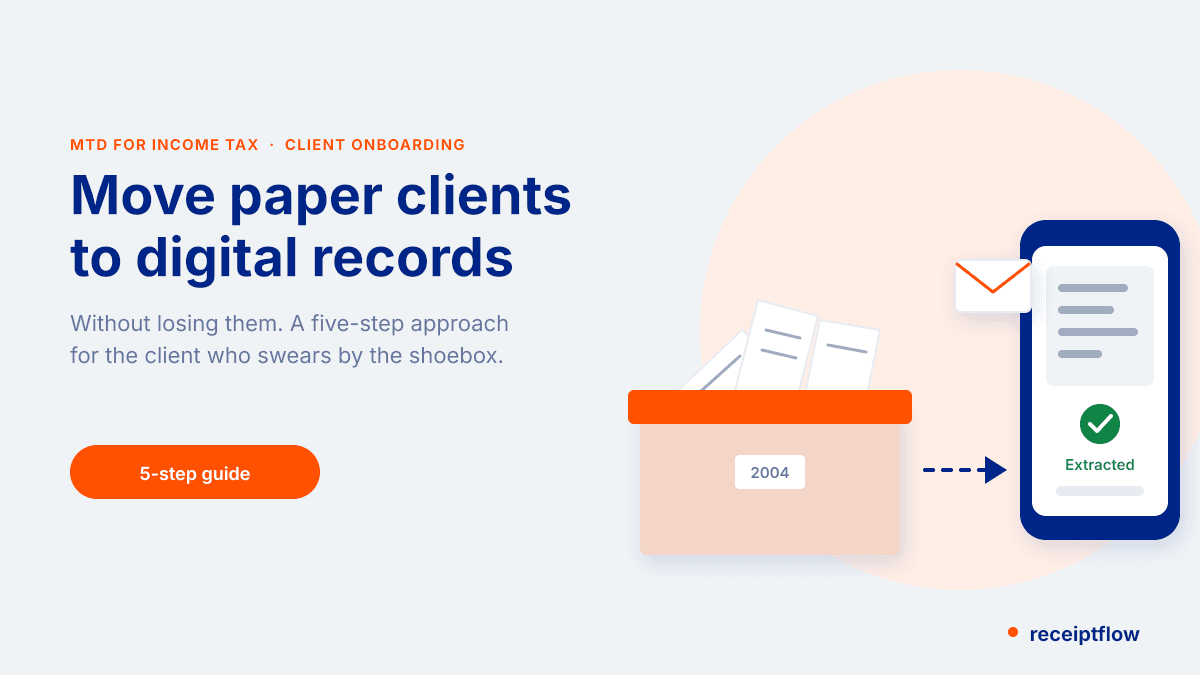
The Receiptflow QuickBooks integration connects directly to QuickBooks Online, so receipts your clients snap on their phone land in the right nominal code without anyone re-keying a single line.
If your practice runs on QuickBooks, the last thing you want is a receipt tool that forces you to bolt on a second system, learn a new chart of accounts logic, or export CSVs by hand every week. You're not looking to migrate your whole stack. You just want the shoebox of receipts problem solved without disturbing everything else that already works.
This guide covers exactly what syncs automatically, what still needs a human to glance at it, and what setup actually looks like for a practice with existing QuickBooks clients.
How the Receiptflow QuickBooks sync works
Receiptflow connects to QuickBooks Online through the official QuickBooks API, using OAuth so your client's login credentials are never stored or seen by Receiptflow directly. Once a client authorises the connection, Receiptflow pulls their existing chart of accounts, VAT codes, and supplier list, then uses that data to categorise every new receipt as it arrives.
When a client photographs a receipt (through the app, WhatsApp, or email forwarding), Receiptflow extracts the supplier name, date, amount, VAT, and line items. It then maps the transaction to the closest existing nominal code in that client's QuickBooks file, attaches the receipt image, and pushes the completed entry through as a draft expense or bill.
The practice never has to build a separate mapping table for each client. Receiptflow reads the categories that already exist in QuickBooks and works within them.
What data moves automatically
- Supplier name and matching to existing QuickBooks vendors, or creation of a new vendor record where none exists
- Transaction date, gross amount, net amount, and VAT rate
- Nominal code assignment based on historical categorisation patterns for that client
- The receipt image itself, attached to the transaction for audit purposes
- Multi-currency amounts, converted at the correct rate where a client trades internationally
What still needs a human to look at it
Receiptflow flags, rather than guesses, in three situations. First, a brand new supplier with no categorisation history gets pushed as a draft with a suggested code, not a confirmed one, so your bookkeeper makes the final call. Second, unusually high-value transactions above a threshold you set are held for review before posting. Third, anything with a VAT rate that doesn't match the supplier's usual pattern gets flagged, since that's often where genuine errors live.
This is deliberate. A tool that auto-posts everything with no review step is a tool that quietly compounds small errors into a VAT return problem six months later. Receiptflow automates the repetitive 90 percent and hands the judgement calls back to your team.
Setting up the QuickBooks connection
Connecting a client's QuickBooks Online file takes a few minutes, not a project. From the Receiptflow dashboard, you add the client, select QuickBooks Online as their accounting platform, and authorise through QuickBooks' own login screen. Receiptflow then syncs the chart of accounts and is ready to receive receipts.
For practices managing several QuickBooks clients, each connection is separate and sits inside its own client workspace, so there's no risk of one client's supplier list or VAT codes bleeding into another's.
What happens when a receipt doesn't match cleanly
Not every receipt is straightforward. A supplier might trade under three different names depending on which till printed the receipt, or a client might snap a crumpled fuel receipt where half the VAT line is unreadable. Receiptflow handles these cases differently rather than forcing a guess through.
When OCR confidence on a field is low, that field is flagged rather than populated with a best-effort figure. Your bookkeeper sees exactly which value needs a second look, rather than having to re-check every line of every receipt to catch the occasional bad read. Over time, as a client's supplier list stabilises in Receiptflow, the number of flagged items per client drops, because the matching engine has more history to work from.
For firms migrating from a manual process, this is usually the biggest shift: review time replaces entry time. Instead of typing 200 receipts into QuickBooks each week, your team is confirming or correcting the handful QuickBooks and Receiptflow's matching couldn't resolve on their own.
QuickBooks receipt scanning: manual vs automated
A practice typing receipts into QuickBooks by hand is paying for the same task twice: once when the client's admin person logs the expense, and again when your bookkeeper re-keys or reconciles it against a bank feed. Every manual entry is also a point where a transposed number or wrong VAT code can slip through unnoticed until year-end.
With the QuickBooks integration switched on, that duplication disappears. The client photographs the receipt once. Receiptflow extracts, categorises, and pushes it through. Your bookkeeper's job moves from data entry to review, which is both faster and a better use of a qualified person's time.
For a practice charging fixed fees per client, the time saved on receipt processing goes straight to margin. For a practice billing hourly, it frees capacity to take on more clients without proportionally growing headcount.
What this means if you're already on QuickBooks
You don't need to touch your existing QuickBooks setup, retrain staff on a new ledger structure, or ask clients to change how they send you receipts. Receiptflow sits in front of QuickBooks as a capture and categorisation layer, then hands off clean, coded transactions for your team to review and approve.
For a firm managing 40 or 50 QuickBooks clients, that difference between manual data entry and a review-and-approve workflow is usually the gap between hiring another junior for receipt processing and simply not needing to.
Is Receiptflow worth it for a QuickBooks-only practice?
If every client you manage is already on QuickBooks Online, the integration removes the main friction point in receipt-based bookkeeping: getting paper and photo receipts into clean, categorised transactions without a team member typing them in by hand. The value scales with how many clients and how many receipts a month you're processing, since the time saved compounds per client, per week.
If you're weighing this up against what accountants typically look for in a receipt scanning tool, the QuickBooks fit is one part of a wider evaluation, alongside pricing and how the tool handles multi-client workflows. For practices with a mix of QuickBooks, Xero, and Sage clients, Receiptflow supports all three, so you're not choosing a tool that only works for part of your client base (here's how that multi-platform setup works in practice).
A worked example
Take a practice with 30 QuickBooks Online clients, each generating roughly 40 receipts a month. That's 1,200 receipts monthly, and at even a conservative two minutes of manual entry per receipt, that's 40 hours a month spent typing numbers into QuickBooks. With Receiptflow handling extraction and categorisation, that same volume typically needs 5 to 8 hours of review time, spent on the flagged exceptions rather than every line.
The hours saved don't disappear. They go back into advisory work, onboarding new clients, or simply protecting the team from another busy season of overtime around VAT deadlines.
Ready to see it on your own client list? Start a free trial and connect your first QuickBooks client in minutes.